

Join 1,000s of professionals who are building real-world skills for better forecasts with Microsoft Excel.
Issue #60 - Text Mining with Python Part 7:
Fuzzy Matching
This Week’s Tutorial
Despite predictions in the early days of the Internet, organizations are dealing with more free-form text data than ever. Unfortunately, this free-form text data can wreak havoc with all manner of business processes:
Matching customer names in IT systems
Deduplicating marketing contact lists
Cleaning supplier/vendor names
Standardizing addresses
And the list goes on and on.
Fuzzy string matching is a battle-tested text mining technique for addressing the above pain points in an understandable, reproducible way.
In this tutorial, you will learn how to use Python in Excel to apply fuzzy matching. The skills you will learn are highly transferable to any role or industry where free-form text data is used (i.e., all of them 🤣).
I encourage you to grab the NameMatching.xslx workbook from the newsletter’s GitHub repository and follow along. Because you learn Python by writing Python.
BTW - Except where noted, all the Python code in this tutorial is 100% compatible with Jupyter Notebook.
What is Fuzzy Matching?
Fuzzy matching is an automated process of comparing two pieces of free-form text (i.e., strings) and providing a score that quantifies the similarity between the two strings.
The fuzzy part of the name comes from the fact that the scoring is rarely perfect. Most of the time, the strings aren't identical.
In this age of AI, it's tempting to give free-form text data to an LLM tool like ChatGPT or Claude and ask it to perform the matching. However, there is a problem with this approach.
The current generation of LLM AI tools is not guaranteed to give you reproducible results. For example, it's possible to get different matching results for the same data if you ask the LLM AI to perform the matching again.
Not surprisingly, given the often business-critical nature of fuzzy matching (e.g., cleaning supplier/vendor names), organizations (e.g., my clients) want a more robust process with understandable, reproducible results.
Fuzzy Matching By Example
I'm going to use TheFuzz library that is included with Python in Excel for this tutorial. The Fuzz provides battle-tested fuzzy string matching functionality, and the best part is that understanding how it works is quite straightforward.
First up, consider the very simple case of these two strings:
Dave
David
As humans, we can tell easily that these strings are very similar. However, a computer needs a process (i.e., an algorithm) to evaluate string similarity in an objective, reproducible way.
So, a core idea in fuzzy matching is distance. Basically, the more the distance between two strings shrinks, the more similar they are. When the distance is small enough for your business requirements, then you say two strings are a (fuzzy) match.
A very simple way to define string distance is to count the number of deletions and insertions needed to transform one string into another. Using the above two strings to transform Dave into David:
One deletion is needed for the e.
Two insertions are needed for the i and d.
In this case, the distance could be considered 3 - the total number of deletions/insertions.
Unfortunately, these raw distance calculations aren't very useful because longer strings will inevitably have more deletions and insertions than shorter ones.
So, TheFuzz calculates a similarity score that allows evaluations independent of string length, with a range of 0 to 100. Here's how the calculation is defined:

In the case of the strings Dave and David:

You can think of all the fuzzy matching capabilities provided by TheFuzz library as building on this foundational notion of distance.
Basic Fuzzy Matching
Per my usual, I highly recommend you store all your Python formulas in a single worksheet and organize them vertically, including documentation:
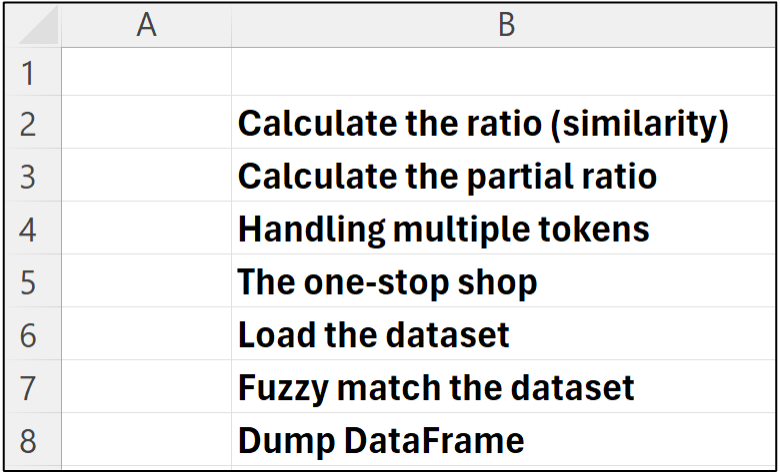
Then, place each Python in Excel formula to the right of your step-by-step documentation:
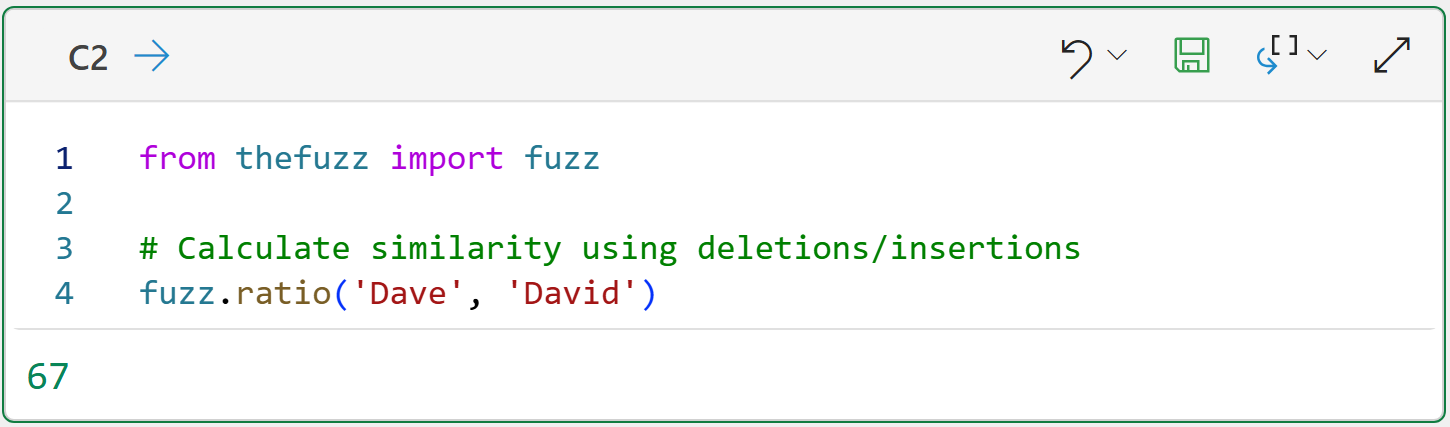
The code in cell C2 demonstrates how the ratio() function calculates the similarity score between two strings based on deletions and insertions using the math you learned about above, multiplied by 100.
You can think of the ratio() function as asking the question, "How similar are these two full strings as written?"
However, sometimes what you need is something a bit more sophisticated. Here's when the partial_ratio() function can be very handy:
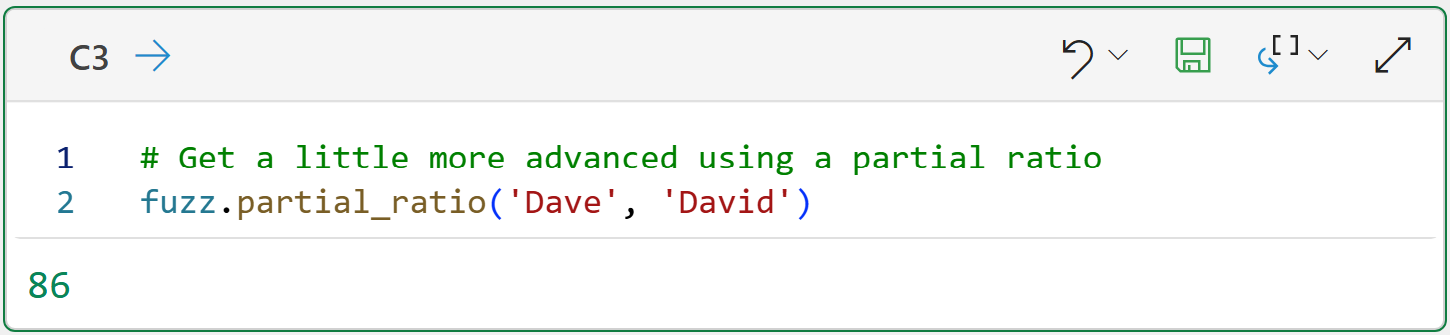
Think of the partial_ratio() function as asking the question, "Is one of these strings mostly contained inside the other?"
You might be tempted to use partial_ratio() by default because it scored so much higher than ratio() using the above example.
However, you must be careful when using partial_ratio() because sometimes it gives scores that are overly generous:
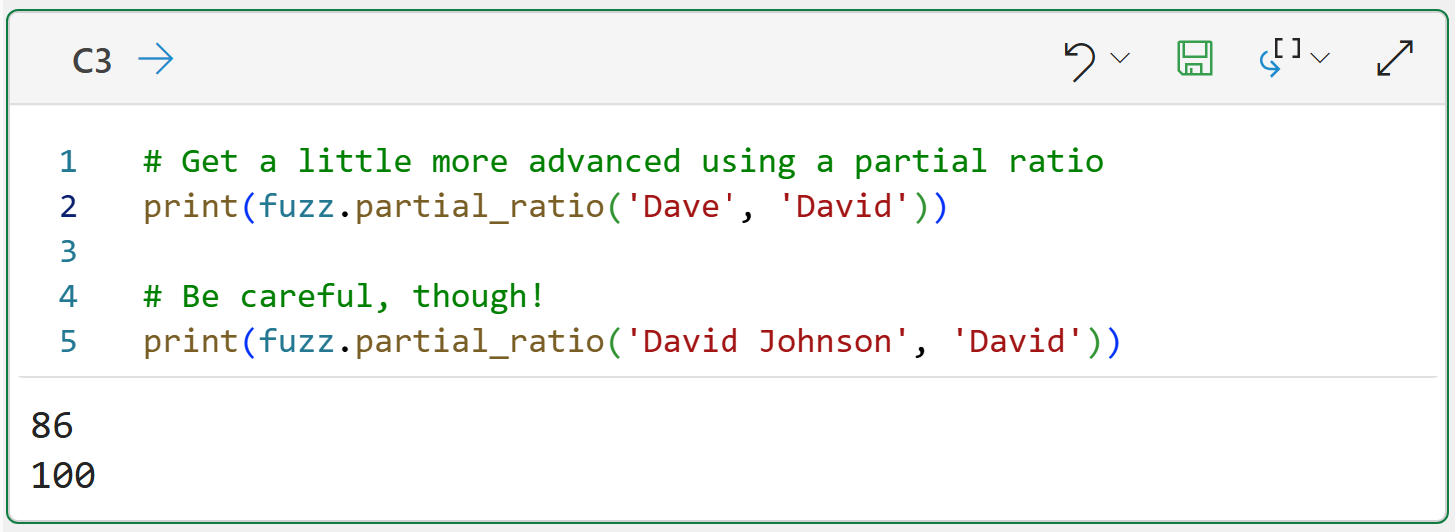
This is a critical idea in fuzzy matching - you can't rely on a single similarity score exclusively if you want the best results.
Fuzzy Matching with Tokens
In Part 3 of this tutorial series, you learned how to preprocess text data to create tokens. In later tutorials, you learned how to use tokens for creating word clouds and building spam filters.
As it turns out, tokens are often quite useful in fuzzy matching as well. Consider the following strings:
Dave Langer
Langer, Dave
As you might imagine, the two matching functions you've seen so far don't do a great job:
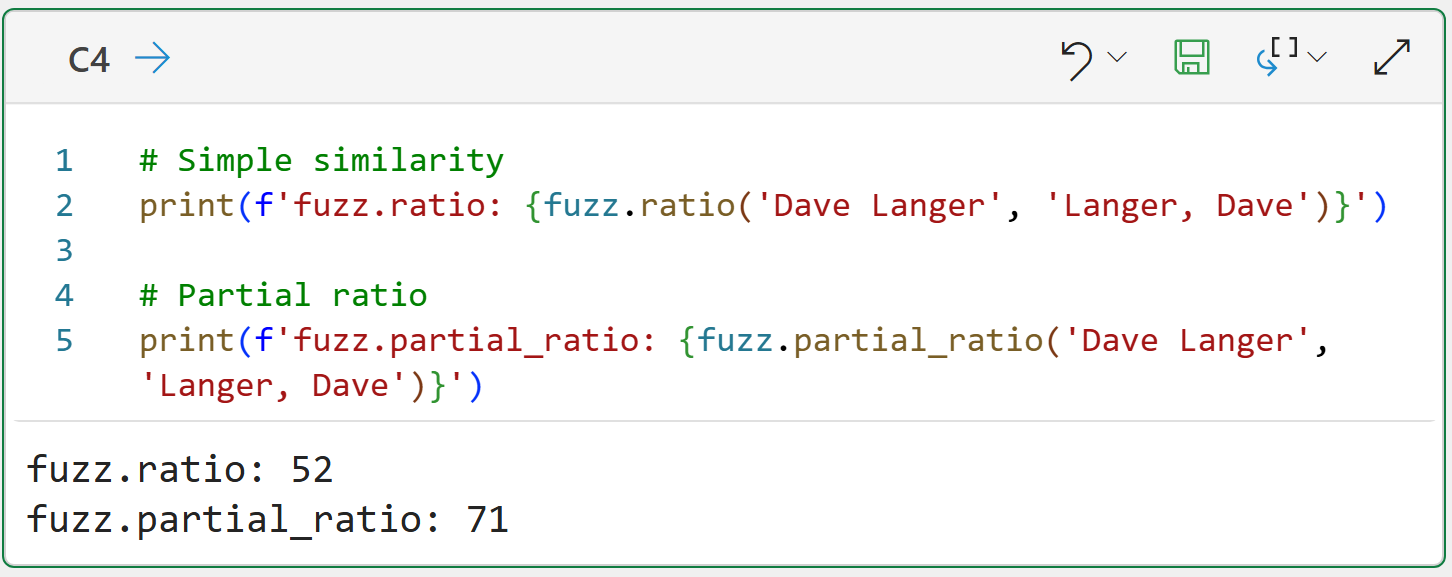
This is why TheFuzz library offers the token_sort_ratio() function:
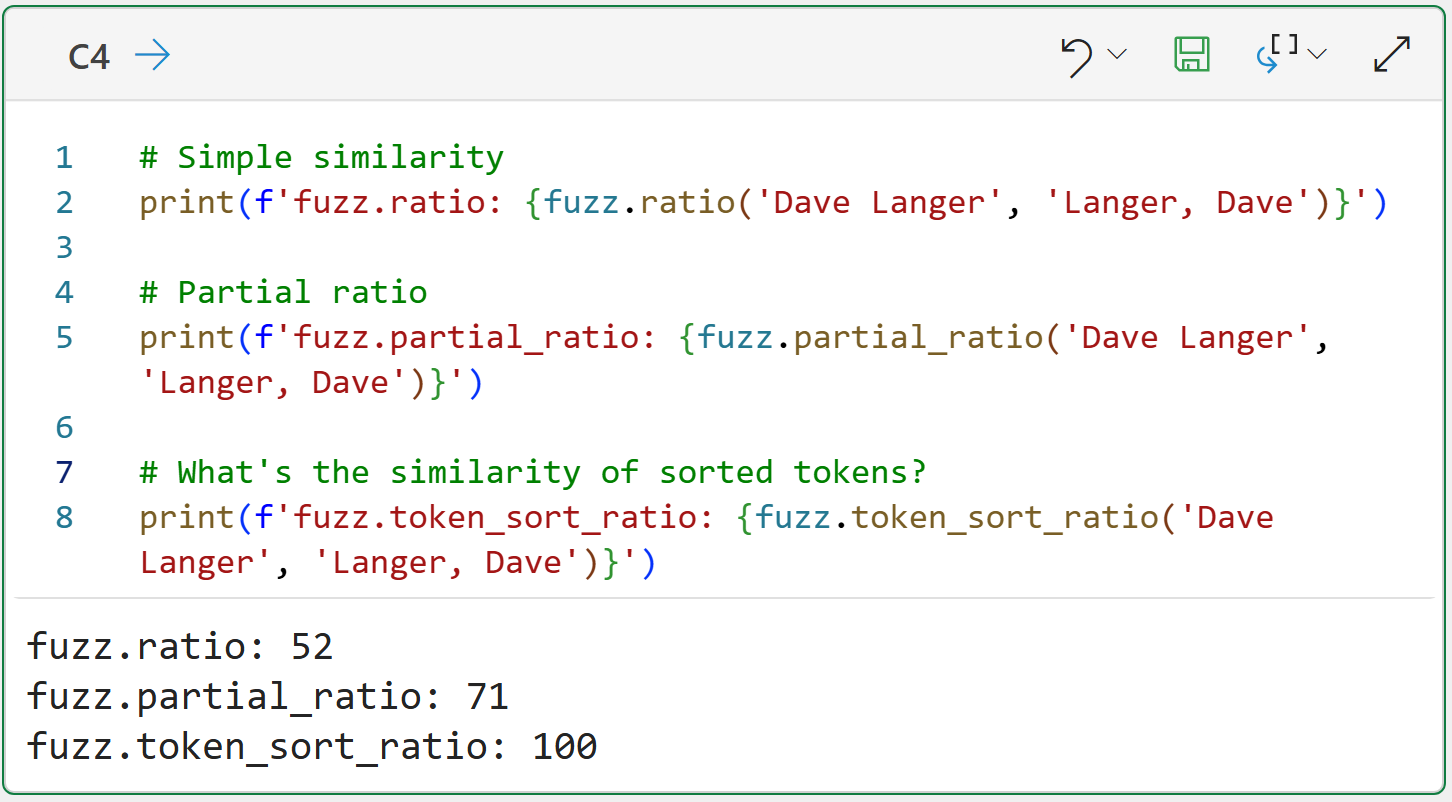
At a high level, here's how the token_sort_ratio() function works:
The strings are preprocessed (e.g., punctuation removed) into tokens.
The tokens for each preprocessed string are sorted.
The similarity is then calculated.
So, in this case, the string 'Langer, Dave' becomes 'Dave Langer'.
Of course, the same caution applies - don't use token_sort_ratio() exclusively. It's better to combine with other similarity scores to get a more holistic picture of the string matching.
The One-Stop Shop
As you've seen from the above, there are many factors/patterns to consider when performing fuzzy matching. The WRatio() function in TheFuzz library aims to provide a "one-stop shop" for your fuzzy matching needs.
BTW - There is a UWRatio() function for handling Unicode characters.
Think of the WRatio() function as combining the techniques above with others to arrive at a blended (or weighted, that's where the W in the name comes in) similarity score.
The WRatio() function is designed to be the best default scoring possible, especially when the strings are dirty in multiple ways simultaneously (e.g., deletions/insertions, tokens, token orders, etc.):
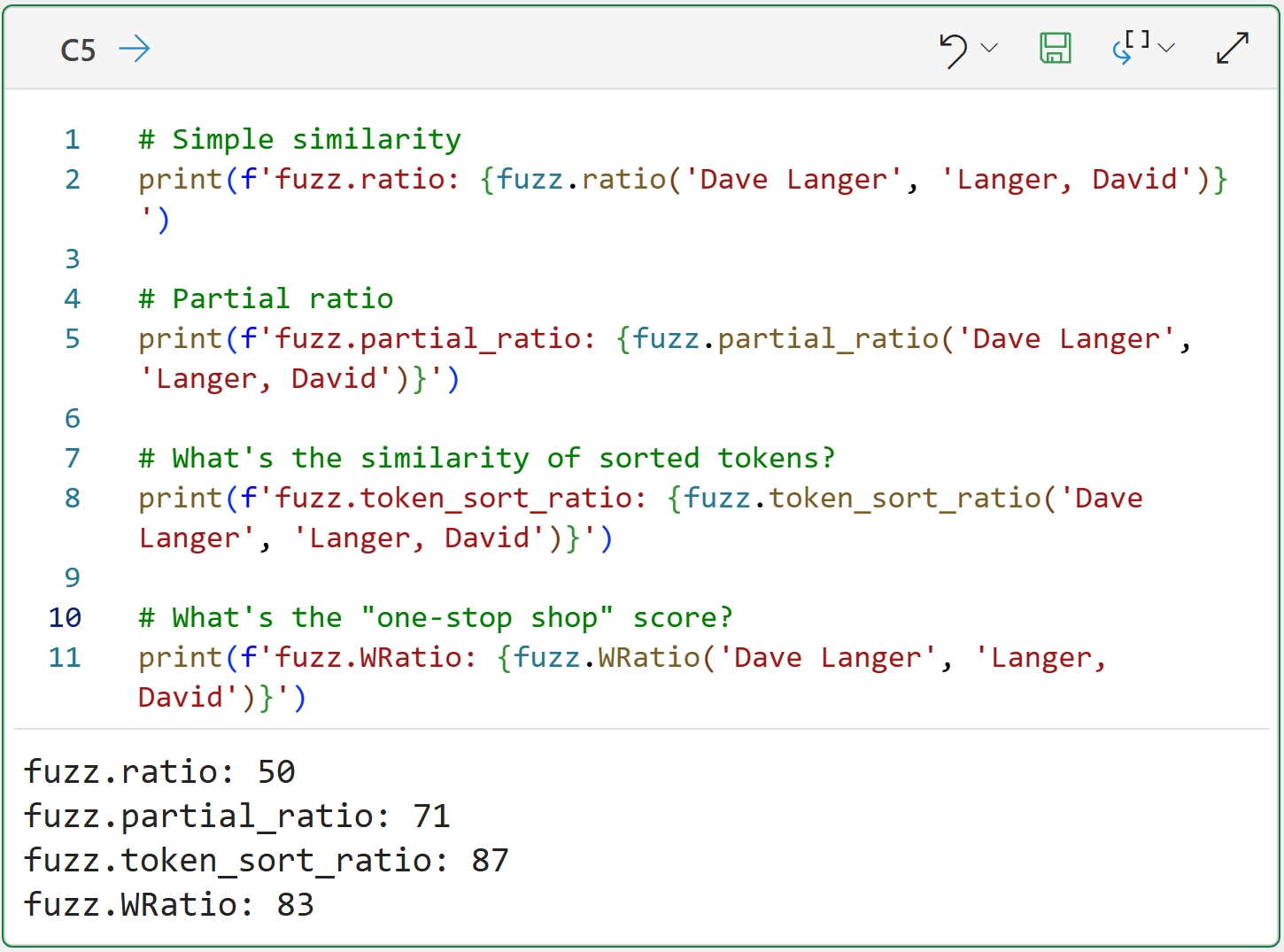
Cell C5's output tells the story.
Notice how token_sort_ratio() scores the highest for this token-based example? Also, notice how the WRatio() score is quite close?
You will see how WRatio() tends to perform the best generally (but not always) when you apply all these functions to the dataset.
Loading the Dataset
I will be using data from the Kaggle Fuzzy Name Matching dataset for this tutorial, specifically, I've loaded the data from the corner_cases_new.csv file into the workbook:
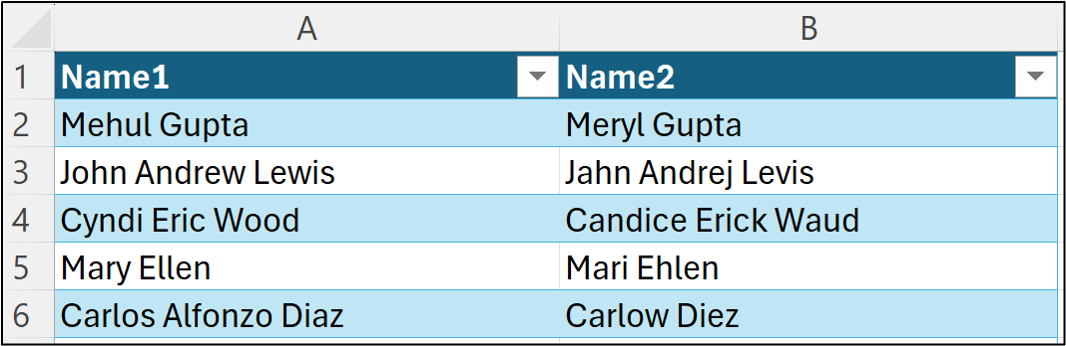
The following code loads the data into Python in Excel:
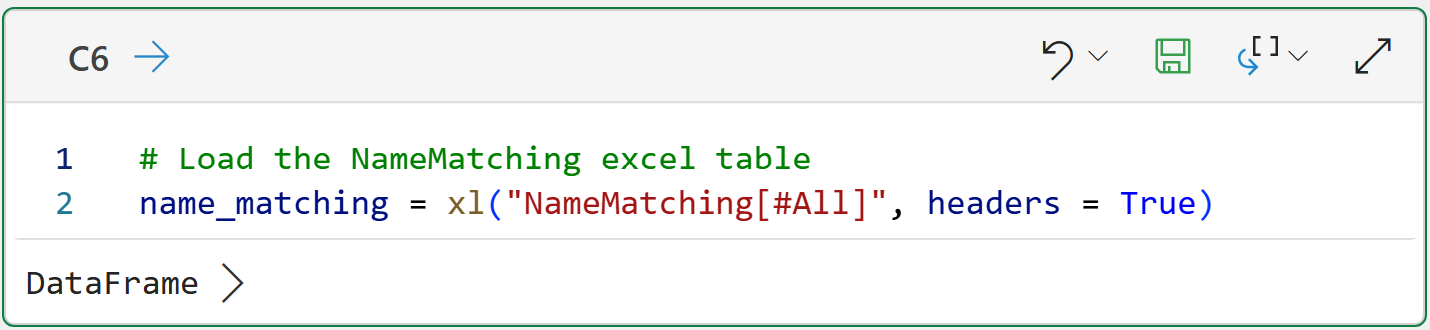
NOTE - This is the only code in the tutorial that is specific to Python in Excel.
With the data loaded, it's time to apply the fuzz matching scoring.
Fuzzy Matching the Dataset
The following code applies each of the fuzzy matching functions covered so far in this tutorial to the NameMatching Excel table.
The functions provided by TheFuzz are written to only work with string pairs - they don't work with entire columns of strings. So, the following code applies the fuzzy matching functions row-by-row for the entire DataFrame:
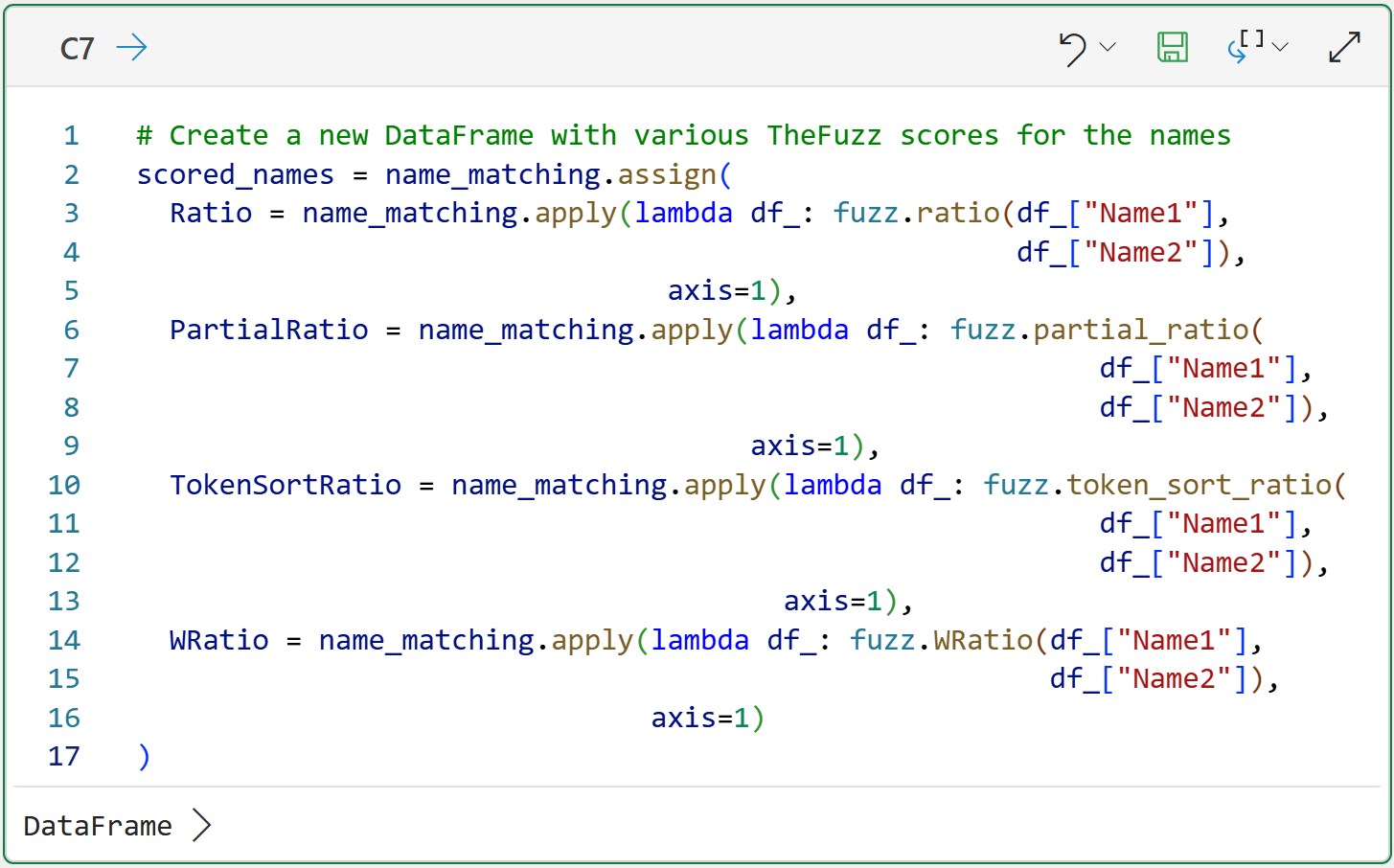
To make the code a bit more readable (your mileage may vary on that score 🤣), I've extended it across multiple lines. However, this isn't required for the code to work.
A few things to note about the code in cell C7:
The code uses the DataFrame's assign() method to create a copy of name_matching and then add new columns to the DataFrame copy.
The DataFrame's apply() method is used to apply each of the fuzzy matching functions row-by-row and add the scores to the DataFrame copy.
Python lambdas (i.e., anonymous functions) are used to perform the actual calls to the fuzzy mapping functions.
BTW - If you're new to Python in Excel, my Python in Excel Accelerator online course will teach you the foundation you need for analytics fast.
As it will be much easier to see the results of the fuzzy matching in the worksheet, the following Python formula displays (i.e., spills) scored_names to the worksheet:
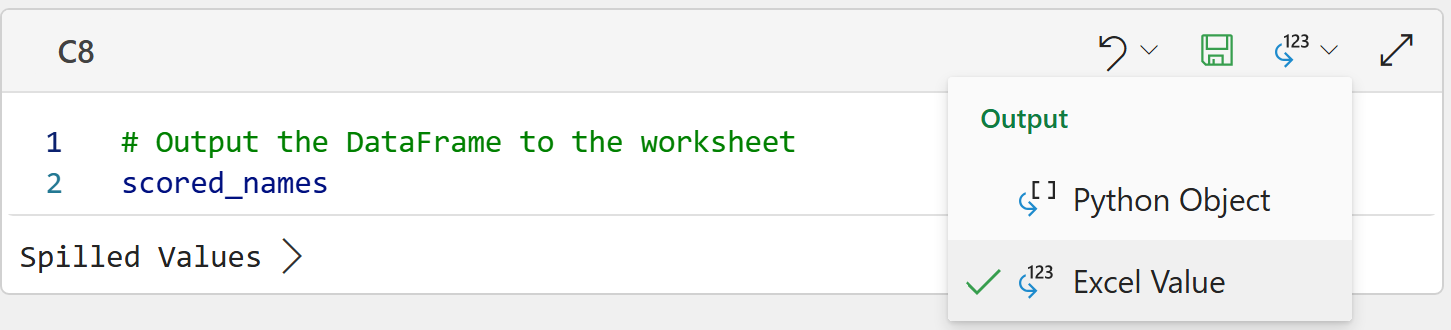
To display the DataFrame in the worksheet, the Python formula's Output needs to be set to Excel Value.
Evaluating the Fuzzy Matching
All the rows of name pairs, including the fuzzy matching scores, now appear in the worksheet:
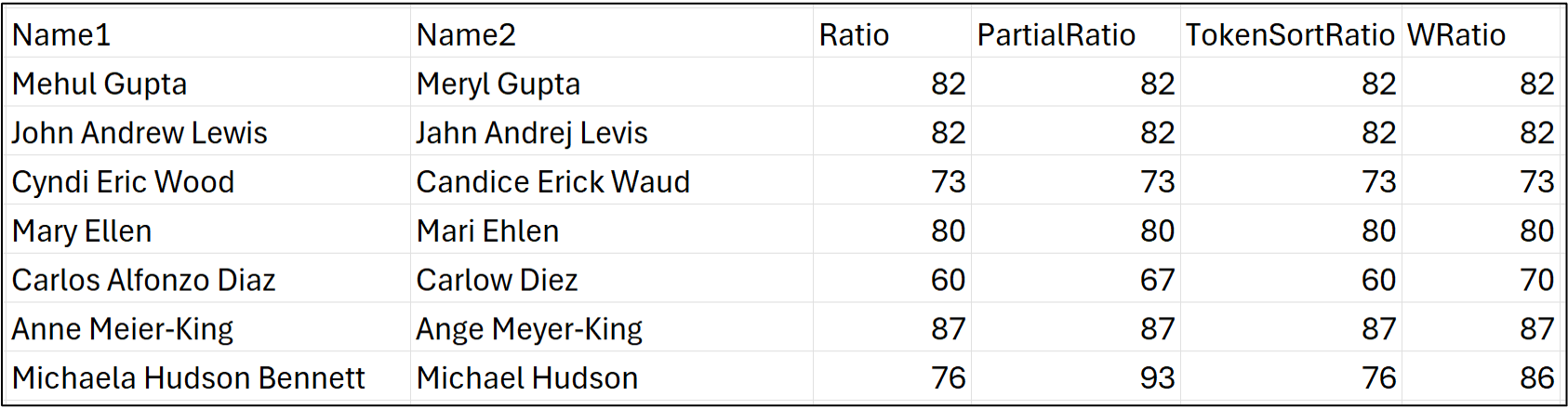
It's very informative to look at two examples of differences in the fuzzy matching scores. First up, an example of where partial_ratio() and WRatio() provide scores that are too optimistic:

In this example, it's clear to our human eyes that these are most likely two different names, even though WRatio() scores the match at 91/100!
Next up, here's an example where only token_sort_ratio() is doing a good job:

Looking at the strings tells the story - they share a lot of the same letters in the same order.
For example, there are only 6 deletions/insertions to transform Russell Pinto to Estelle Pinto, which is why ratio() provides such a high score. Because of these complexities, it's best to use fuzzy matching score combinations as an evaluation framework.
While there are subtle and important differences between datasets that should drive the evaluation framework, here's an example based on this dataset, which you can use as a starting point:
Likely Strong Match: When WRatio >= 90 and either ratio >= 80 or token_sort_ratio >= 90
Likely Reorder/Formatted Match: Ratio < 70 and token_sort_ratio >= 90 and WRatio >= 85
Likely Partial Match: partial_ratio >= 95 and ratio < 75
Suspicious: WRatio between 75 and 85, but the other scores are quite different
Weak: All scores are fairly low, especially WRatio < 75
NOTE - Useful fuzzy matching is not easy and usually requires several rounds of iteration to meet business requirements. Be patient.
This Week’s Book
What I find continually surprising is how often organizations underestimate the value of their Kimball-style data warehouse. In case you're not familiar with the power of dimensional modeling, this is the definitive work on the subject:
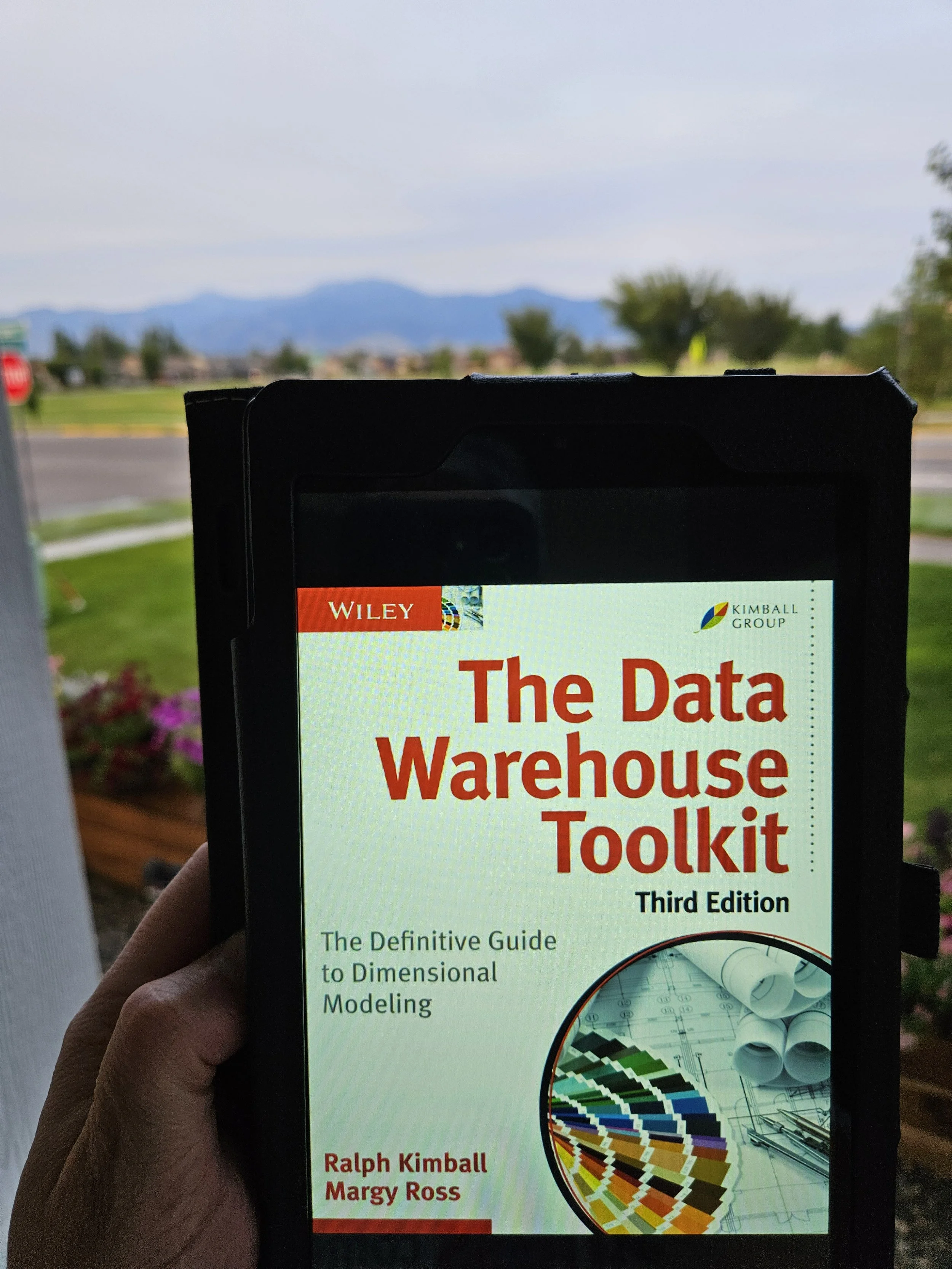
The dimension and fact tables in a Kimball-style data warehouse can be used for a lot more than just reporting and dashboards. These tables are prime data sources for powerful predictive analytics, including response modeling, churn prediction, and forecasting.
That's it for this week.
My next newsletter will launch a new tutorial series on a critical topic for any business: customer lifetime value (CLV).
Stay healthy and happy data sleuthing!

Dave Langer
Whenever you're ready, here are 3 ways I can help you:
1 - The future of Microsoft Excel is unleashing the power of do-it-yourself (DIY) analytics using Python in Excel. Do you want to be part of the future? My Python in Excel Accelerator online course will teach you what you need to know, and the Virtual Dave AI tutor is included!
2 - Are you new to data analysis? My Visual Analysis with Python online course will teach you the fundamentals you need - fast. No complex math required, and the Virtual Dave AI Tutor is included!
3 - Cluster Analysis with Python: Most of the world's data is unlabeled and can't be used for predictive models. This is where my self-paced online course teaches you how to extract insights from your unlabeled data. The Virtual Dave AI Tutor is included!